Download Free Your Desired App
Home » Softwares » Development » Visual Studio 2019 Free Download
Visual Studio 2019 Free Download
Visual Studio 2019 Free Download Latest Version for Windows. It is full offline installer standalone setup of Visual Studio 2019.
Visual Studio 2019 Overview
Visual Studio 2019 is an advanced integrated development environment that has been equipped with all the tools which you need for creating innovative applications. This impressive IDE can be used for building the projects which involve console apps, software solution and graphical user interfaces. You can also download Microsoft Visual Studio .NET 2002.
 Visual Studio 2019 is very easy to use application and it does not matter whether you are new to the coding or an expert, it will streamline your experience so that you can get right down to focused work. Visual Studio 2019 has got a completely new look of the startup window. The layout of the “Create a new project” window has been modified and it contains similar functionality to that of the earlier Visual Studio release. It has also been equipped with Live Share feature which has improved the developer collaboration. The Better Search is another new feature which is dedicated to the productivity of the developer. The new search is capable of searching everything which includes menus, commands, options, project codes and installable components. The developers can start developing the apps right from the scratch or can also modify the existing ones. Bugs can be fixed easily with the help of built-in debugger which can be used both as a source level and as a machine-level one. All in all Visual Studio 2019 is an impressive and advanced IDE that has been equipped with all the tools which you need for creating innovative applications. You can also download Visual Studio 2015 Update 3 ISO.

Features of Visual Studio 2019
Below are some noticeable features which you’ll experience after Visual Studio 2019 free download.
- An advanced integrated development environment that has been equipped with all the tools which you need for creating innovative applications.
- Can be used for building the projects which involve console apps, software solution and graphical user interfaces.
- Got a completely new look of the startup window.
- The layout of the “Create a new project” window has been modified.
- Equipped with Live Share feature which has improved the developer collaboration.
- The Better Search is another new feature which is dedicated to the productivity of the developer.
- The new search is capable of searching everything which includes menus, commands, options, project codes and installable components.
- Can start developing the apps right from the scratch or can also modify the existing ones.
- Bugs can be fixed easily with the help of built-in debugger which can be used both as a source level and as a machine-level one.

Visual Studio 2019 Technical Setup Details
- Software Full Name: Visual Studio 2019
- Setup File Name: VS2019_0.rar
- Full Setup Size: 21 GB
- Setup Type: Offline Installer / Full Standalone Setup
- Compatibility Architecture: 32 Bit (x86) / 64 Bit (x64)
- Latest Version Release Added On: 05th Apr 2019
- Developers: Visual Studio

System Requirements For Visual Studio 2019
Before you start Visual Studio 2019 free download, make sure your PC meets minimum system requirements.
- Operating System: Windows 7/8/8.1/10
- Memory (RAM): 1 GB of RAM required.
- Hard Disk Space: 22 GB of free space required.
- Processor: Intel Dual Core processor or later.
Visual Studio 2019 Free Download
Click on below button to start Visual Studio 2019 Free Download. This is complete offline installer and standalone setup for Visual Studio 2019. This would be compatible with both 32 bit and 64 bit windows.
Before Installing Software You Must Watch This Installation Guide Video

Below is Fast Magnet Link

Password 123
Related posts:
This Post was Last Updated On: September 24, 2022
-
-
-
-
-
-
#8 written by z4f4n 3 months ago
-
-
-
#10 written by Abhishek Patel 6 years ago
-
#11 written by FS27 6 years ago
Hi thanks it is working on my Windows 7
now the question is, if we download 20Gb and while installing it asks us to download all packages for C++ or Python or C# or C …etc. I chosed a standard installation which means about 200Mb of files. My question is how can I match the 20Gb of packages that I downloaded from “getintopc” to the folder where VS is installed? knowing that I have a terrible network to download the whole packages again.
Please help me
thanks for your great work 🙂 -
#12 written by Gbenga Omofe 6 years ago
-
#14 written by Kirito 6 years ago
-
-
#22 written by Sameer 6 years ago
-
-
#26 written by glendon nolo 6 years ago
-
-
#30 written by Ashan Madusanka 6 years ago
-
#34 written by Sunny mansach 6 years ago
-
#39 written by Devin 6 years ago
After downloading the file and began installing it by following the installation video, i found out without network, its won’t work and with network, it will download some files. after i downloaded the first 70mb file and and selected the packages ill wish to install, I was asked to download another 3.7GB file from the internet. It felt like it was a waste downloading the 20gb file to download other files again. I came down into the comments to see if people are complaining about it, i saw the featured comment and used the CMD files instead. which made it work as a full offline package. Thanks Science lover for your 1 year old comment. Fatima if you are still the one managing this site, it will be lovely to update to installation guide to a simple text of this featured comment. well, thanks for the software.
-
#40 written by Ķwř Pětęr Əm 6 years ago
-
#47 written by Muhammad saqib 6 years ago
-
#50 written by Daniel Tesfay 6 years ago
-
#54 written by Naga Raju 6 years ago
-
#57 written by Muhammad Nauman 6 years ago
After i downloaded, and tried to run the cmd file Setup_Enterprise0 it gives an error. https://uploads.disquscdn.com/images/ed385ca2d0945c3593ef7f5e4a69ad6049feb5cd8971b5a372ef2fec8be90da5.jpg
-
#60 written by alvin 6 years ago
-
#63 written by Kirito 5 years ago
-
-
#69 written by rajat panda 5 years ago
not abl to install while following this instruction
This is the proper method of installing visual studio 2019—-
# Fist of all download visual studio 2019 from the link above.
# Now turn of your internet connection and turn of antivirus you are using, also turn of window defender in setting.
# Now extract the downloaded file with winrar or with any other application you use.
# Make sure to extract it in the directory where it can be found easily otherwise a error massage will appear with similar to “directory is too long”
# Than go to the folder “VS2019_0 ” which you have extracted.
# Here you will find some cmd file like “Certificates_Setup, Setup_BuildTools0, Setup_Comunity0, Setup_Enterprise0, Setup_Professional0, Setup_TeamExplorer0” + two folder i.e installer and more(do not open these folder)
# The main cmd files are “Setup_Enterprise0, Setup_Professional0, Setup_Community0”.
# Click on any one cmd file with the name of visual studio edition which you want to install.
# Now a command window will appear do not do anything because command window will do everything itself and will take you to “visual studio installer window”.
# Now process is almost complete just click on the continue option appear on installer. Now installer will take you to another window with some components of visual studio. Choose the files you want to install by marking them and click on “install” option.
# Make sure that complete process is offline turn off data connection and do not connect to the internet while you are installing visual studio.plz help me for complete instalation
-
#75 written by omotayo adebola 4 years ago
-
-
- Comment Feed for this Post


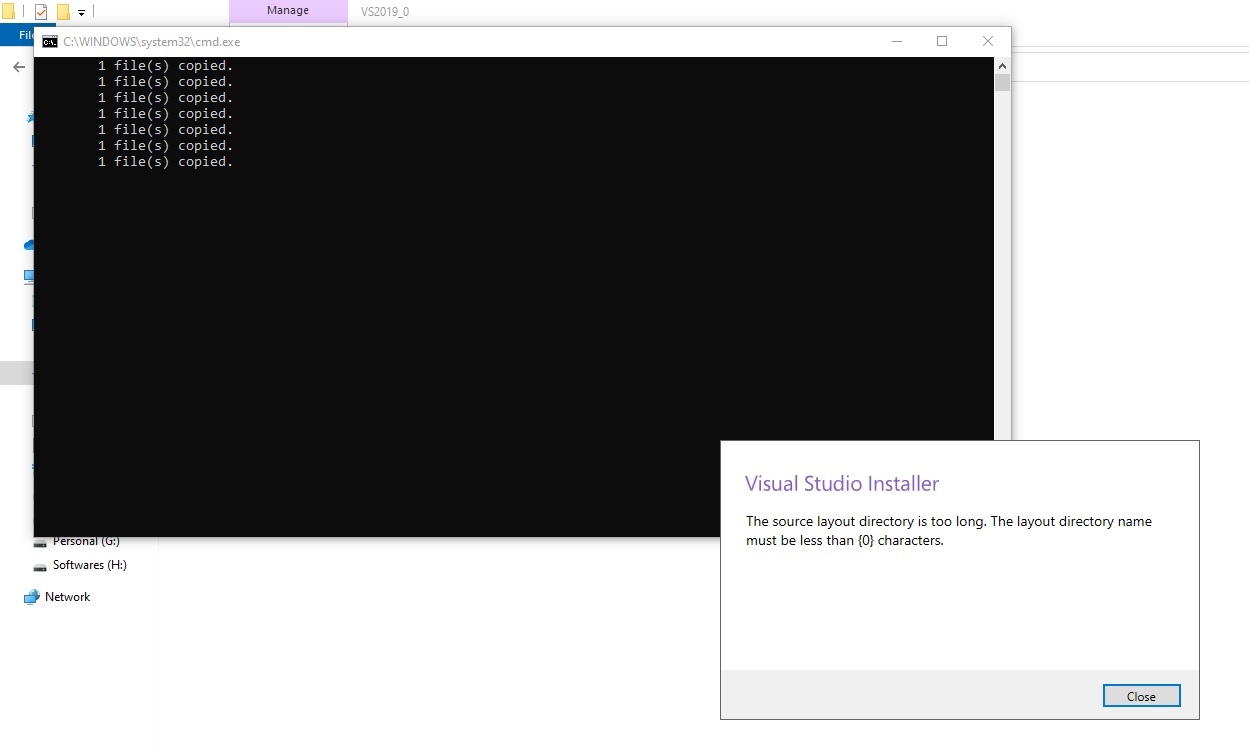
admin please i get 0xc00005 error while running setup