Download Free Your Desired App
Home » Tutorials » How To Fix Fingerprint Reader on HP ProBook
How To Fix Fingerprint Reader on HP ProBook
Easy steps on How To Fix Fingerprint Reader on HP ProBook. Easily Fix Fingerprint Scanner on HP ProBook Laptop Series and Setup Biometric password.

It took me long to find correct way to setup fingerprint reader in HP probook series laptop. Initially when I purchased laptop the installed OS had already setup every thing. But soon after re installing new Windows, I was unable to Fix Fingerprint scanner on HP laptop. I searched on HP forums to setup biometric in probook but none of the post help me.
Finally I found a way to fix fingerprint reader and setup fingerprint password in HP Probook laptop. I though I should share it with all those guyz who are facing problem with fingerprint scanner in HP probook series.
Learn To Fix Fingerprint Reader on HP ProBook
This is complete step by Step tutorial to setup biometrix fingerprint reader on HP Probook series laptop.
Step 1: Download Microsoft .NET Framework 4.5
To setup fingerprint biometric reader on HP Probook series, first of all you have to download latest .NET Framwork 4.5. I have provided direct download link for .NET 4.5 This is official Microsoft link for standalone installer of .NET 4.5
Before Installing Software You Must Watch This Installation Guide Video


After download you have to install .NET Framework 4.5 setup file named (dotnetfx45_full_x86_x64.exe). Without installation of .NET framework 4.5 the below HP applications cannot be installed.

Step 2: Download HP ProtectTools Security Manager
Now the second important step to fix HP fingerprint scanner is to download HP Protecttools security manager. This is needed to setup HP biometric fingerprint reader in Probook series laptop. The download link is from official HP website.
Once security manager is downloaded, install its setup file and wait until the installation is complete.

Once installation is complete, restart your laptop.
Step 3: Configuration of ProtectTools Security Manager
After PC is restarted you’ll see below screen to start Configuration of ProtectTools Security manager. You have to configure it.

Security manager will require Windows Password. You can give recovery question answers as well. Once its configuration is complete. Then go to step 4.

Step 4: Download Device Access Manager for ProtectTools
Third step is to install HP Device Access Manager application. This is also necessary tool which should be installed before fixing HP fingerprint biometric scanner on probook series. Click on below button to download Device Access Manager from official HP Link.
After downloading, install HP Device Access Manager as per below screenshot.

Step 5: Download HP Biometric Device Driver
The last tool to install is the biometric device driver. This can be downloaded from official HP driver site. First select your laptop model and then download this biometric sensor driver. I have provided the link for HP Probook 4540s Biometric driver. If you have different HP Probook model you can download its biometric driver from here.
Install Biometric Device Driver as per below screenshot.

After this you’ll prompted for another validity biometric driver. Install it as per below snapshot.

Step 6: Final Configuration to Setup Fingerprint Sensor
Now when all of the above are downloaded and installed in order. Just swipe your finger on laptop’s biometric sensor. The below screen would appear.

Click on Manage Link and below screen will appear.

Expand Credentials Manager and click on FingerPrints as per below screen.

Click on any finger and swipe finger as per on screen instructions. You have to set al-least 2 fingers for fingerprint password.
Now logoff and on windows logon screen only swipe your finger. All done.
Now I hope you have successfully implemented HP Biometric fingerprint reader fix. This will help you to setup fingerprint password for HP Probook series. Let us know if you faced any issue while fixing fingerprint scanner in HP Probook.
Password 123
Related posts:
This Post was Last Updated On: February 2, 2022
-
Sure. Here is the link of biometric/fingerprint driver for your model http://h20566.www2.hp.com/portal/site/hpsc/template.PAGE/public/psi/swdHome?sp4ts.oid=5359407
-
#3 written by AR K 12 years ago
-
-
-
-
-
-
#9 written by Reacal 12 years ago
-
-
The method works 100% for us on windows 7.
I think step 4 file is different for windows 8. Also it is worth mentioning we provided step 5 file for windows 7 as well.So to fix your issue. So you need to install step 4 and step 5 for windows 8. I mean go to hp site here.
Choose your operating system and download device access manager and biometric driver for your OS. Then it should work.
I apologize for the inconvenience caused. ;(
http://h20566.www2.hp.com/portal/site/hpsc/template.PAGE/public/psi/swdHome?sp4ts.oid=5269095&ac.admitted=1402568518159.876444892.199480143 -
-
-
-
-
-
-
-
-
-
-
-
-
-
#35 written by AMIR TANWEER 11 years ago
-
-
-
-
-
-
-
-
-
-
-
-
-
-
-
-
-
-
#52 written by Amri Hazman 11 years ago
Dear Fatima,
I would like to share my success to fix fingerprint reader on Compaq Presario CQ45 128TXFirst, I have to go to this link:
“Enter model number” , that is Compaq Presario CQ45 128TX
Clicked “Find my product”, got the following URL:
This was: “Software and Drivers” page.
Then I selected and conformed my operating system:
“Select or confirm your operating system and submit”
And clicked “Next”.
I got the list of drivers and softwares:
Expanded the “Driver – Keyboard, Mouse and Input Devices”
Downloaded “Validity Fingerprint Sensor Driver” and installed it
Expanded the “Software – Security”
Downloaded “Digital Persona Fingerprint Reader Software” and installed itAll were set to record my fingerprint identity.
Went to “C:Program Files (x86)Digital PersonaBin”
Double clicked “DPDashboard.exe”Then followed the process so I can verify my identity 🙂 , and it’s done
Hope this help!PS: You can adopt to your machine and operating system.
-
-
-
-
-
-
-
#60 written by Don VB Star's 11 years ago
-
-
-
-
-
-
-
-
-
-
-
#70 written by Malik Tayyab 11 years ago
-
-
-
#74 written by Ramdeepak Pallati 10 years ago
hiii..
please help me.. My lappy is Probook 4540s. But i am unable to install the biometric driver. I has completed the above 4 steps successfully. But at 5th Step, i am encountering a problem. It’s showing that,” A later version of ‘Device Access Manager for HP Protect Tools’ is already installed on this machine. The setup cannot continue.”
Please guide me to setup fingerprint scanner properly.
-
-
-
#77 written by Dobromir Velikov 10 years ago
-
-
#81 written by Mizo Qwabe 5 years ago
please help if there’s anyone here, im facing a problem .
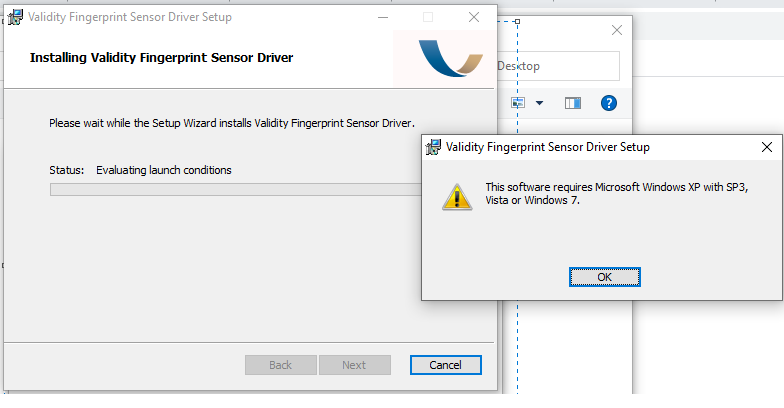
Step 4:Download Device Access Manager for ProtectTools. {After instation i get an error saying the setup is made for xp} https://uploads.disquscdn.com/images/67a88aeb27bdc97229839ccc587b75986e1408c4052cda900d33fdf49a4f3348.png -
-
-
-
-
#89 written by Syed Shafaqat Ali 12 years ago
Ms Fatima , today once while i was starting the machine it showed me the option of fingerprint unlocking but while i swipe the finger it said did not match. then when I restarted again it didnot show any option of fingerprint unlocking. and no sign of any screen occurs when I swipe on screen after starting windows. Now?
-
-
- Comment Feed for this Post


Thank you so much! It helpt alot for my Probook 5330m. 🙂